First things first: Tangent does not book tee times
Tangent does not book your tee time. You get your tee times from the course the same way you always have. What Tangent does is make managing the tee time easier than doing it by hand: the sign-ups, the waitlist, the pairings, the game, the scorecards, the money and the emails, so it saves you time and the back-and-forth.
So the order never changes: get the tee times first, then post them on Tangent.
As much or as little as you want
Tangent doesn’t decide how your group runs; the host does. Every part of a tee-time day has an automatic setting and a by-hand setting, and you can mix them however your group likes. A host who wants the app to do everything can set it and forget it. A host who likes to keep a hand on the sheet keeps it. Here’s the range:
- Sign-ups. Players press I can play and they’re in, first come first served; or the host gets an FYI email for each one; or nobody is seated until the host approves them, one click from the email. Or turn the button into an email to the host and seat everyone yourself.
- The waitlist. Runs itself: when the day is full the button becomes Waitlist me, and when a spot opens the first person waiting is moved in and emailed. Or the host moves people on and off by hand on the sheet.
- Pairings. Deal the whole field in one press, by team index, tee boxes, individual index or A-B-C-D, with the host locked into the first group; or drag every player exactly where you want them. Fix an index or a tee box right on the sheet.
- Messaging. The announcement, the night-before reminder, the sign-up confirmations and the results email can all go out on their own; or each kind can be switched off, sent only when the host presses the button, or sent to a hand-picked list. The host always chooses who gets what.
- The game. Pick a format and the pot and the app scores it and figures the payouts; or play a house game and settle the money at the table; or set no game at all and just post tee times.
- Scoring. Scores arrive on their own from the Tangent app, from a player’s phone on the 1st Tee page, from a photo of the paper cards, or typed in by the host. Any mix, on the same sheet.
- Results and payouts. Course handicaps, pops, skins and places are figured for you, with a payout sheet to settle up; the host can withdraw or delete a player and the money recalculates. Or ignore all of it and run the pot the way you always have.
- Who’s in the group. Open to anyone who finds the page, invite-only, or join-by-request with the owner’s approval.
Everything below walks through each of those, one page at a time. Skip what you don’t use.
Before you start: no subscription needed
You don’t need a Tangent subscription to run or play in tee times. Groups is free to use for hosts and players alike. All anyone needs is a login.
A login gives a player their own profile: their name and photo, their handicap index, and their preferred tee box. The host’s sheet, the scorecards and the course handicaps all read from that profile, so the one thing worth asking every player to do is sign in once and check that their index and tee box are right.
The Tangent iPhone app is a separate thing: a player who has it gets their scores and stats kept automatically, but it’s optional. Everything in this guide works without it.
Signing in
Go to groups.tangent.golf. This is the page you’ll see when you aren’t signed in.
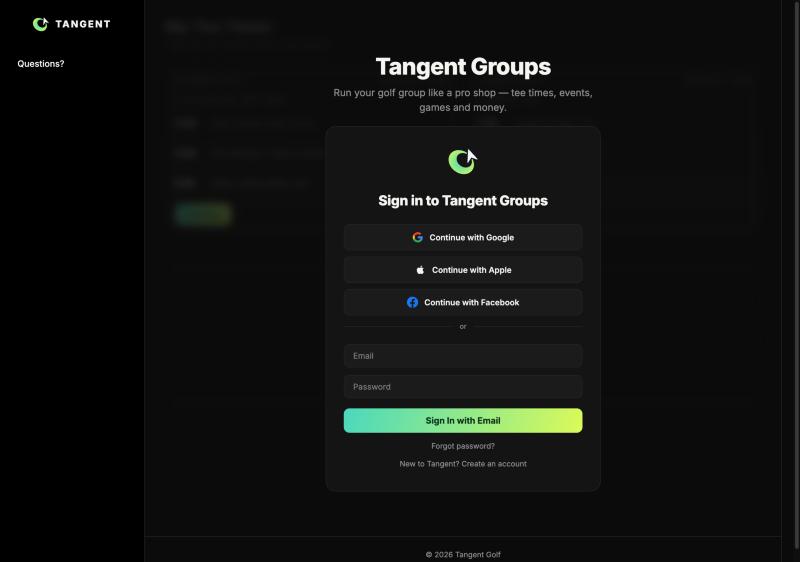
Use Continue with Google. It’s the easiest way in and the most secure: there’s no Tangent password to make up, remember or lose. You sign in with the Google account you already have, and Google confirms it’s you.
A word on security. Tangent doesn’t handle your sign-in itself. Sign-in is run by Firebase Authentication, a Google service, and it’s managed by Google. We never see your password, and we have no access to your sign-in details. Signing in only tells us who you are, so we can show you your groups and your tee times.
Apple and Facebook sign-in work the same way, through those companies. Email and password is there too, for anyone who prefers it.
Once you’re in, every sign-in lands you on My Tee Times.
My Tee Times: your home page
Every sign-in lands here. My Tee Times shows every tee time you can join: if you’re a member of one group or several, all of their tee times are on this one page.
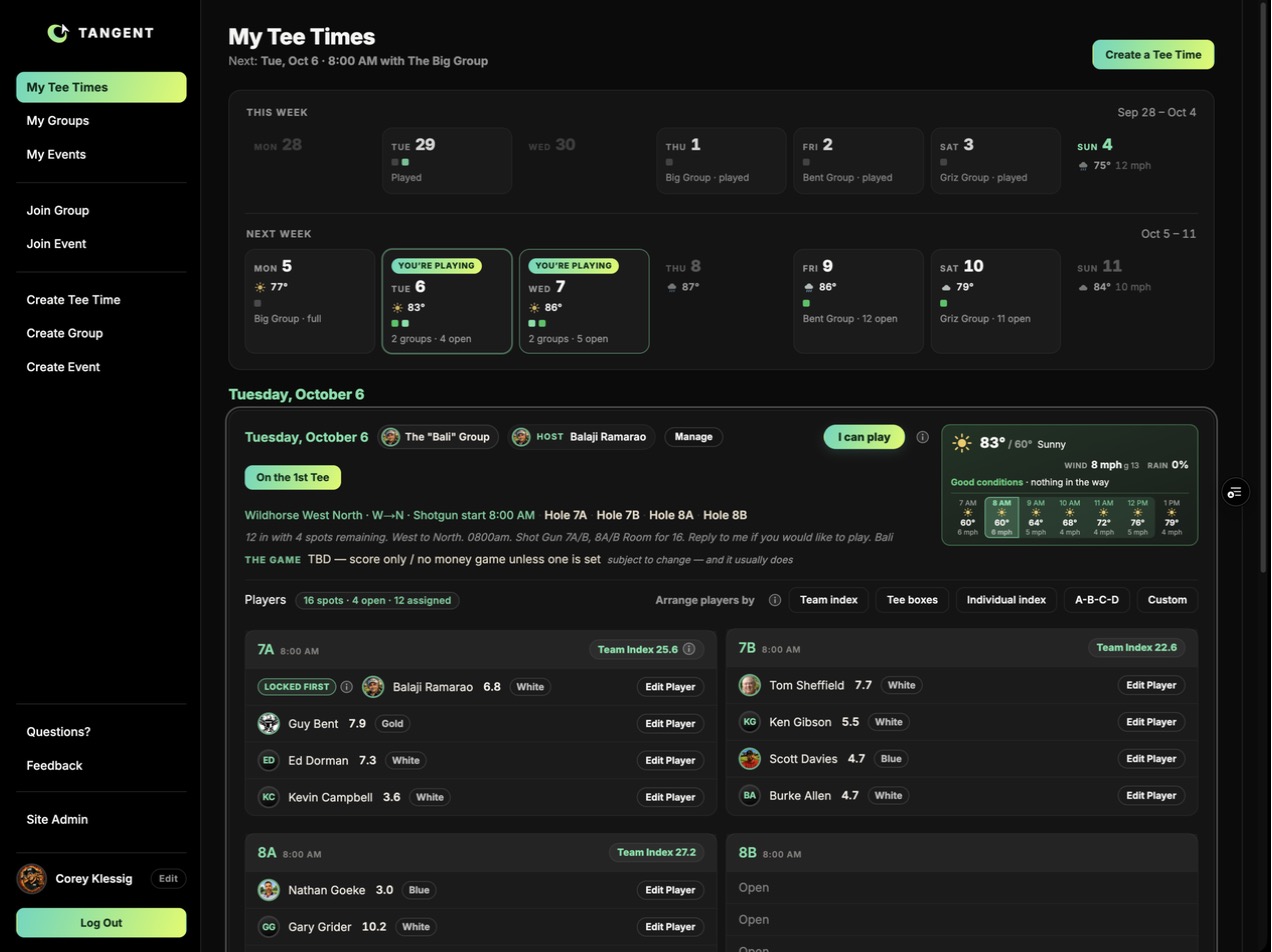
- This week and next week run across the top, a box per day. A green dot means a group has tee times that day; the box says which group and how many spots are open. The day you’re playing is marked You’re playing.
- Tap a day and it opens below: the group, the host, the course and times, the weather at the course, and the players.
- I can play is the one button a player needs. On a full day it reads Waitlist me instead. Once you’re in, it becomes I can’t play.
- On the 1st Tee is the phone page for game day: confirm your group, see the game, and score.
- Below the details, the day’s pairings: each tee time with its players, their index and tee box. A host sees Edit Player and the Arrange players by row here too; a player just sees who’s in.
- Create a Tee Time, top right, is where a host starts.
Before you post: secure the tee time
Once more, because it’s the step everything else depends on: Tangent doesn’t book tee times with the course. The host secures the tee time first, through the course’s own system, and once it’s secured it gets posted here so the group can see it, sign up and get their groups and game.
So the order is always:
- Request and secure the tee times with the course.
- Post them on Tangent with Create a Tee Time.
- Announce them to the group.
Create a Tee Time
Once the tee times are secured with the course, press Create a Tee Time at the top right of My Tee Times (it’s also in the left menu). Only group admins see it: a player who isn’t an admin of any group doesn’t get the button.
Pressing it opens the Create Tee Time page. The work runs down one page, and the pills across the top (Tee Time · The Game · Pairings · Messaging · Print Scorecards) are the steps you’ll come back to once the day exists. You start on Tee Time.
The Tee Time step: mirror what you booked
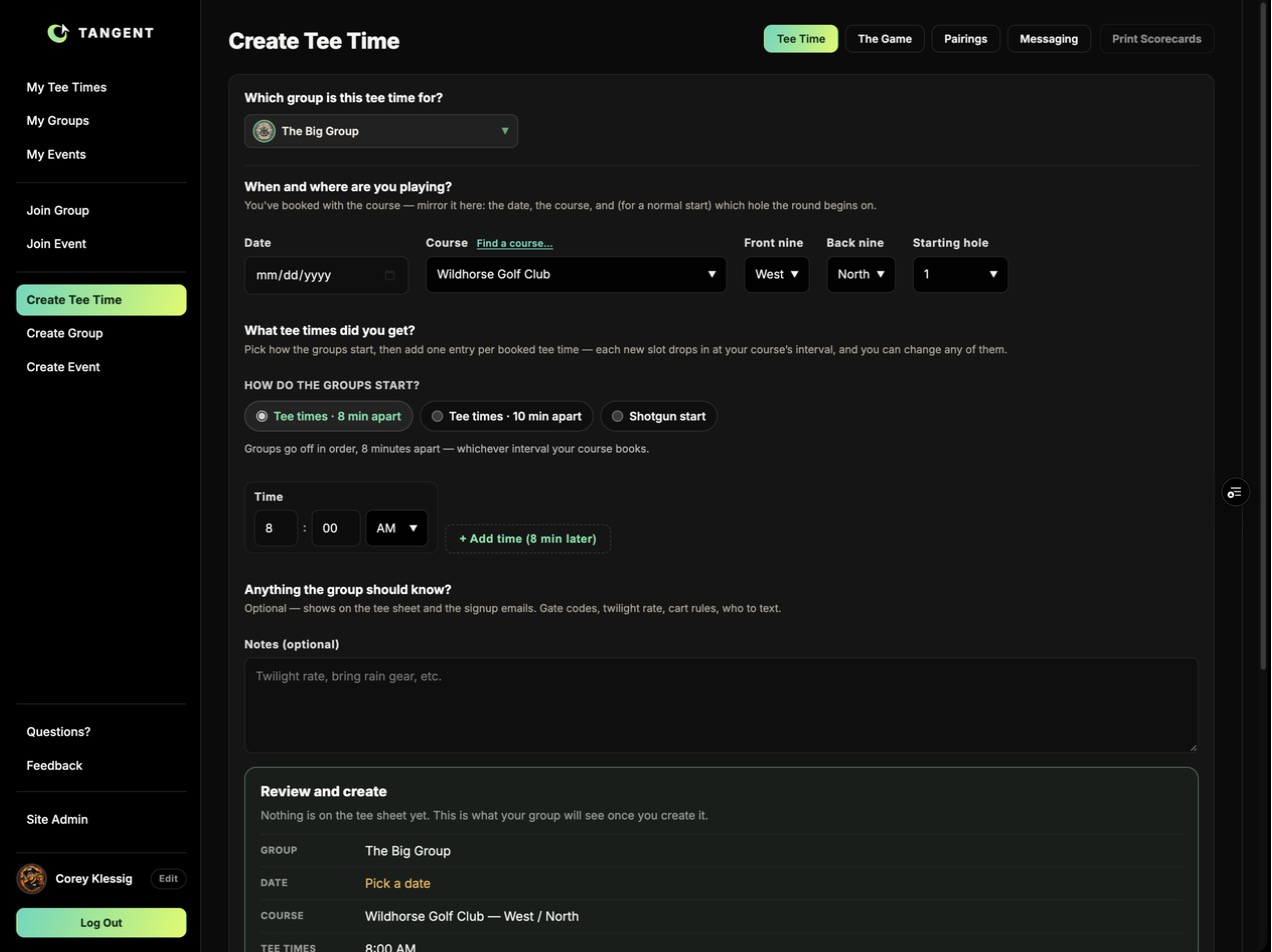
Everything on this page repeats what the course gave you. Fill it in from the top:
- Which group is this tee time for? Pick the group. If you’re an admin of one group it’s already chosen.
- Date. The day you booked.
- Course. The course you booked at, with its front nine and back nine in the order you’ll play them (a course with more than two nines lists each one). The course drives the weather on the card, the tees players are matched to, and the course handicaps on the scorecards, so pick the right one. Find a course searches if yours isn’t in the list.
- Starting hole. For a normal start, the hole the first group tees off on (1, or 10 for a back-nine start).
- How do the groups start? Tee times, with how many minutes apart (8 unless you change it — set it to the interval your course books), or Shotgun start when every group goes off at once from different holes.
- What tee times did you get? Put the first time in the Time box, then press + Add time once for each tee time you booked. Each new one drops in at the course’s interval (8:00, 8:08, 8:16…), and you can change any of them. Four tee times means four entries, which is sixteen spots.
- Notes (optional). Anything the group should know: twilight rate, cart rules, who to text. It shows on the tee sheet and in the emails. Don’t put gate or restroom codes here; those stay off the site.
Review and create
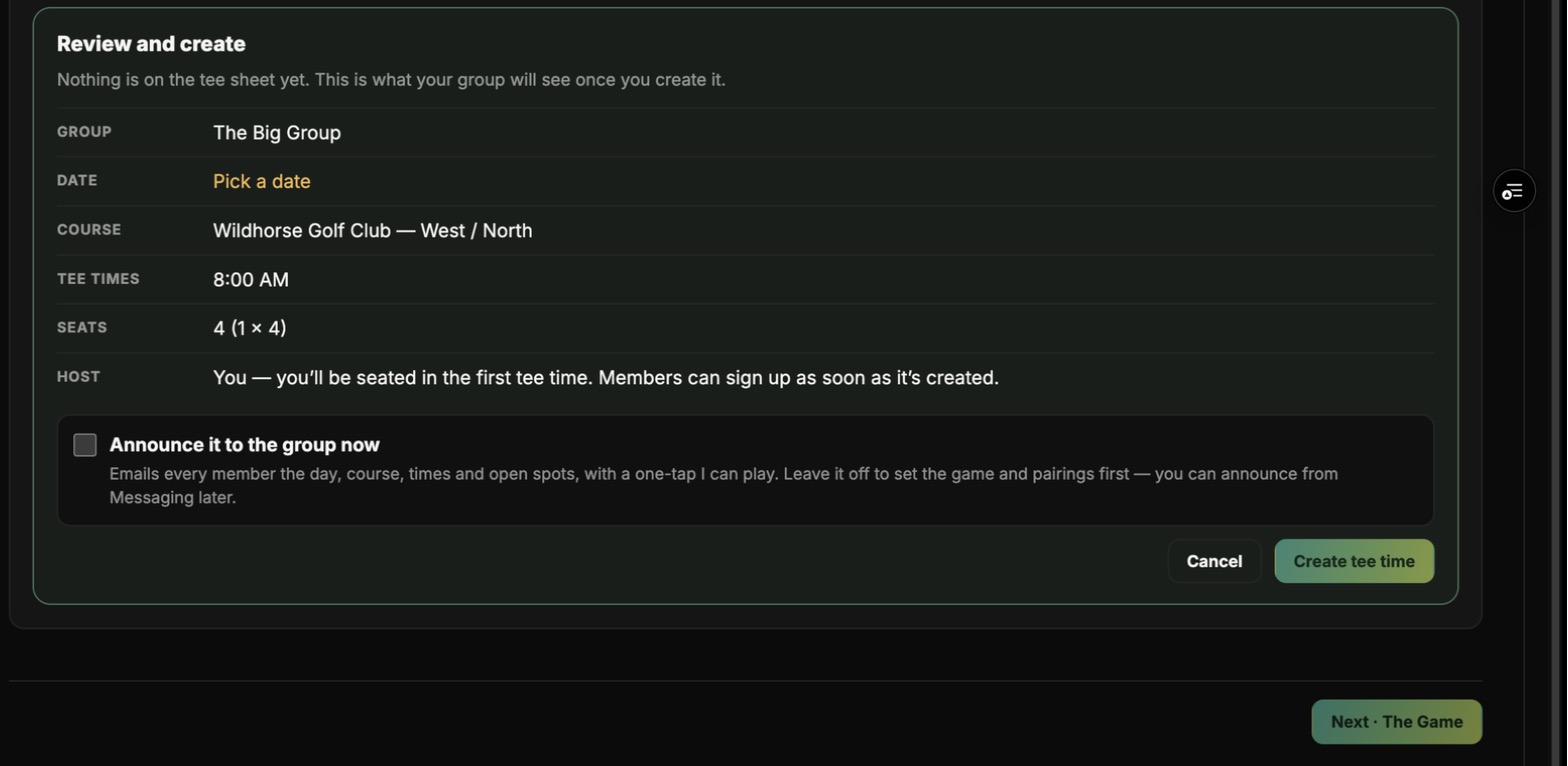
The box at the bottom shows exactly what the group will see: group, date, course and nines, the tee times, the number of seats (tee times × 4) and the host. The host is you, the person creating the day, and you’re seated in the first tee time automatically. Anything still missing shows in amber (here, Pick a date), and the Create button stays off until it’s filled in.
Announce it to the group now. This checkbox is the one thing on the page that sends email. Ticked, pressing Create emails every member the day, course, times and open spots with a one-tap I can play. Leave it unticked if you want to set the game and pairings first; the day waits on My Tee Times with a Not announced badge and you announce it from Messaging when it’s ready. (For this guide it stays unticked.)
Press Create tee time. The day is now on the tee sheet, members can sign up, and the page moves on to The Game.
The Game (optional)
See every game we support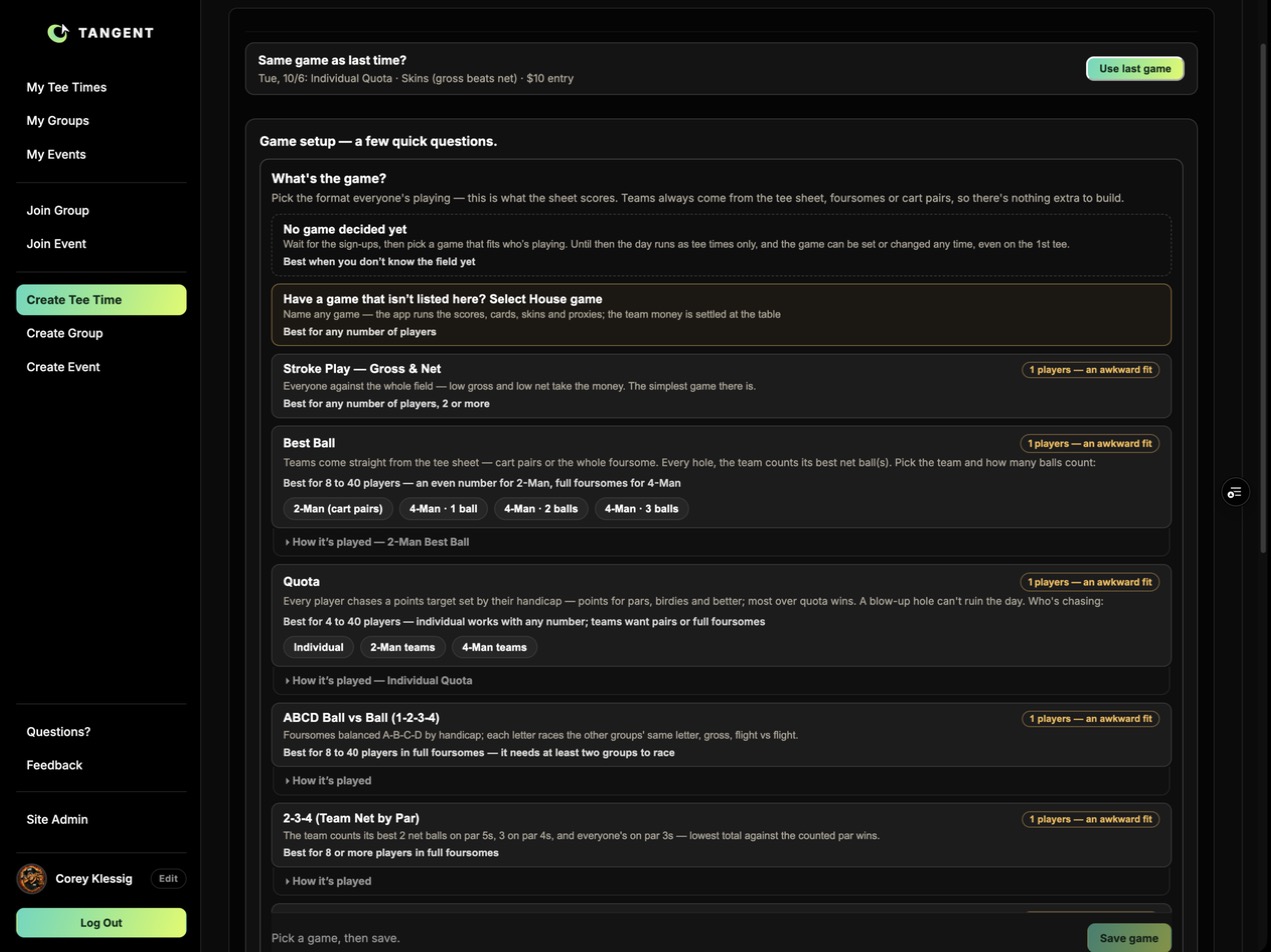
This step is optional. A day doesn’t need a game: skip it and the tee times are just tee times, with sign-ups, pairings and scoring still working. Set one when the group plays for something and you want the app to score it.
It’s often better to wait. The right game depends on who shows up: how many players, how their indexes spread, whether the tee sheet makes even foursomes. If you set the game now you’re guessing. Announce the day first, let the sign-ups come in, then come back to The Game (Manage on the day card, then the The Game pill) and pick a game that fits the field you actually have. The suggestions and the AI review work from the real sign-ups once there are some.
The game can be changed at any time. Nothing locks. We have changed the game standing on the 1st tee, when a player didn’t show or a late one turned up, and it all carries through: the scorecards, the live board and the results follow whatever the game is when the round is scored.
The page asks a few questions down the page, one at a time. Answer one and the next appears.
- Same game as last time? The top card remembers the group’s last game (here, Individual Quota with Skins and a $10 entry). Use last game copies the whole thing in one press, which is what most weeks want.
- No game decided yet is the first card. Press it to leave the game open and come back once you know the field; the day runs as tee times only until then.
- What’s the game? Pick the format. Each card says who it suits (“Best for 8 to 40 players”) and shows an awkward fit badge if the number of players signed up doesn’t suit it yet; that changes as people sign up, so don’t let it stop you. How it’s played under each card explains the format in plain words.
- Below the format come the side games (skins, proxies), the money (entry, how the pot splits) and the tees the day plays. Each is a question with its options; answered questions collapse to one line with a Change button.
- Suggest a game and AI game review can pick for you from who has signed up, their indexes and how the tee sheet is grouped.
- House game: the group plays something not listed. The app still runs scores, cards, skins and proxies; the team money is settled at the table.
- Stroke play, gross & net: everyone against the field.
- Best ball: cart pairs or foursomes straight off the tee sheet, 1, 2 or 3 balls counting.
- Quota: everyone chases a points target set by their handicap, individually or in 2- or 4-man teams.
- ABCD ball vs ball and 2-3-4: foursome games for bigger days.
Press Save game at the bottom. The game shows on the day card, in the announcement and on the scorecards. Come back and change it whenever the field changes, right up to and including on the 1st tee.
Pairings: the tee sheet
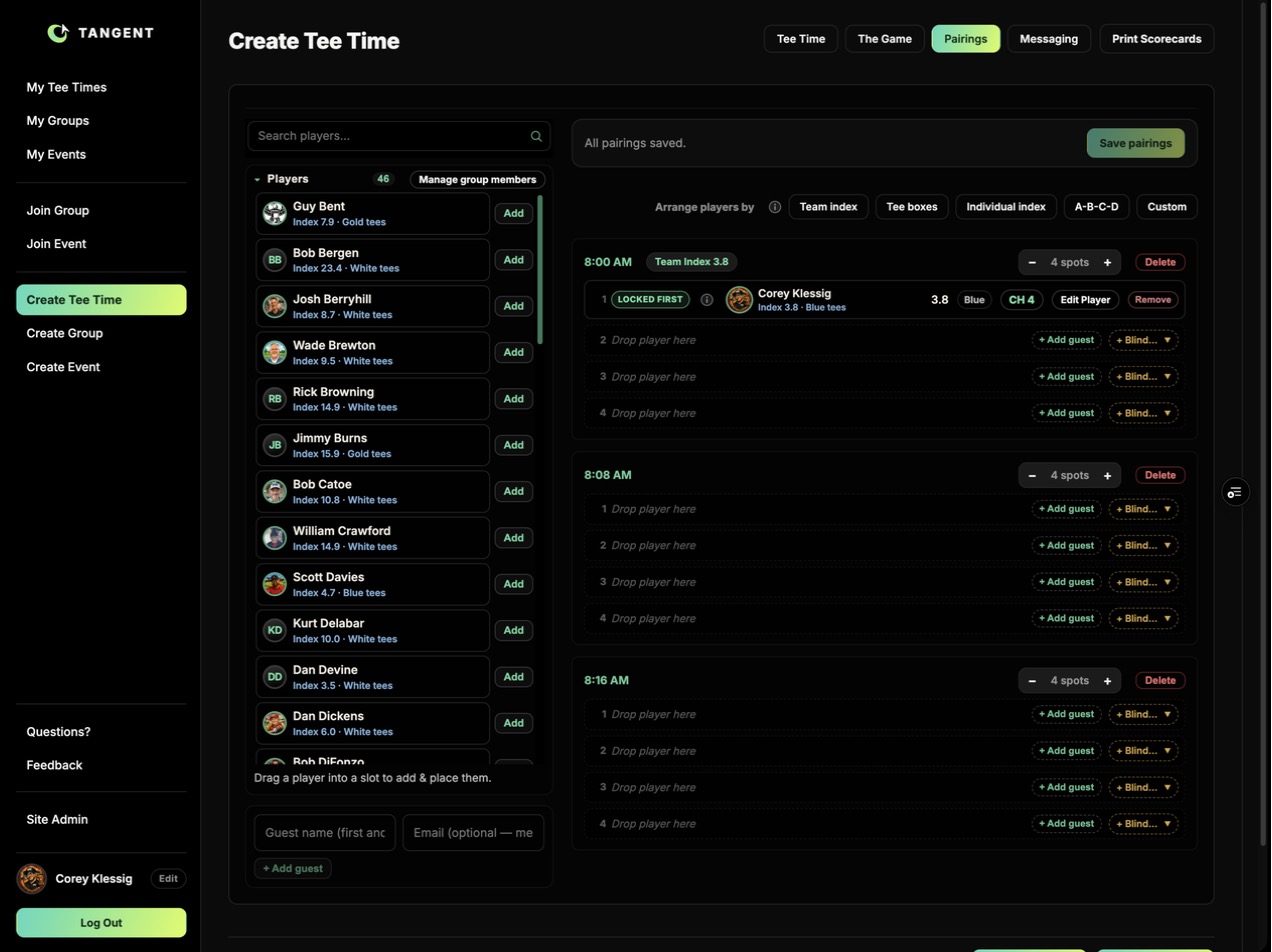
This is the day’s tee sheet, one block per tee time with its spots. You, the host, are already seated in the first one. Most spots fill themselves: when a member presses I can play they’re added to the day and seated in the next open spot. This page is where the host arranges the day by hand, and it’s the same whether you reach it from Create Tee Time or later from Manage on the day card.
Adding people
- Add a member. The Players list on the left is the whole group, with each person’s index and preferred tee. Search players finds someone fast. Press Add beside a name and they go into the next open spot, or drag them onto a particular spot. They’re on the day exactly as if they’d signed up themselves. Members already on the day are marked Assigned.
- Add a guest. Someone who isn’t a member (a visiting friend, a relative) goes in as a guest: type the name in the Guest name box at the bottom left, an email if you have one, and press + Add guest; or press + Add guest on the empty spot itself. The guest shows on the sheet as “Guest” and doesn’t need an account.
- Blind draw. + Blind on an empty spot fills it with a blind draw for team games when you’re a player short; the game engine knows it isn’t a person.
- Spots. The 4 spots control changes a tee time to 2, 3 or 5 players when the course gave you a threesome or you’re squeezing a fifth. Delete on a tee time removes that one tee time (the players go back to the list).
Indexes and tee boxes
Each seated row shows the player’s index, tee box and course handicap (CH) for this course. Press Edit Player to change the index or the tee box: a box for the index, a menu of this course’s tees, then Save. For a member this is saved to their profile, so it carries to every round from now on and the sheet updates at once. For a guest it sets the index and tee for this day. Remove takes a player off the day; they get an email saying who removed them.
Arranging the groups
Arrange players by deals the whole field into the tee times in one press. Try one, look at the result, try another; nothing is saved until you press Save pairings.
- Team index: every group’s combined index comes out close. Use this for team formats (best ball, team quota, 2-3-4).
- Tee boxes: golds with golds, blues with blues, in index order inside each group.
- Individual index: good players with good players; the groups run from lowest index to highest. For individual formats where the better players want to play together.
- A-B-C-D: the field split into four flights by index, one from each flight in every group.
- Custom: move players yourself. Drag a player to a seat, or onto another player to swap them.
Team Index beside each tee time is the sum of the seated players’ indexes, so you can see at a glance whether the groups are even; a player with no index is called out in red.
Nothing is sent to anyone when you seat, move or rearrange players: that’s the host arranging the sheet. Moves stay on screen as unsaved changes until you press Save pairings at the top; the bar says All pairings saved when you’re done.
Messaging: announcements and group updates
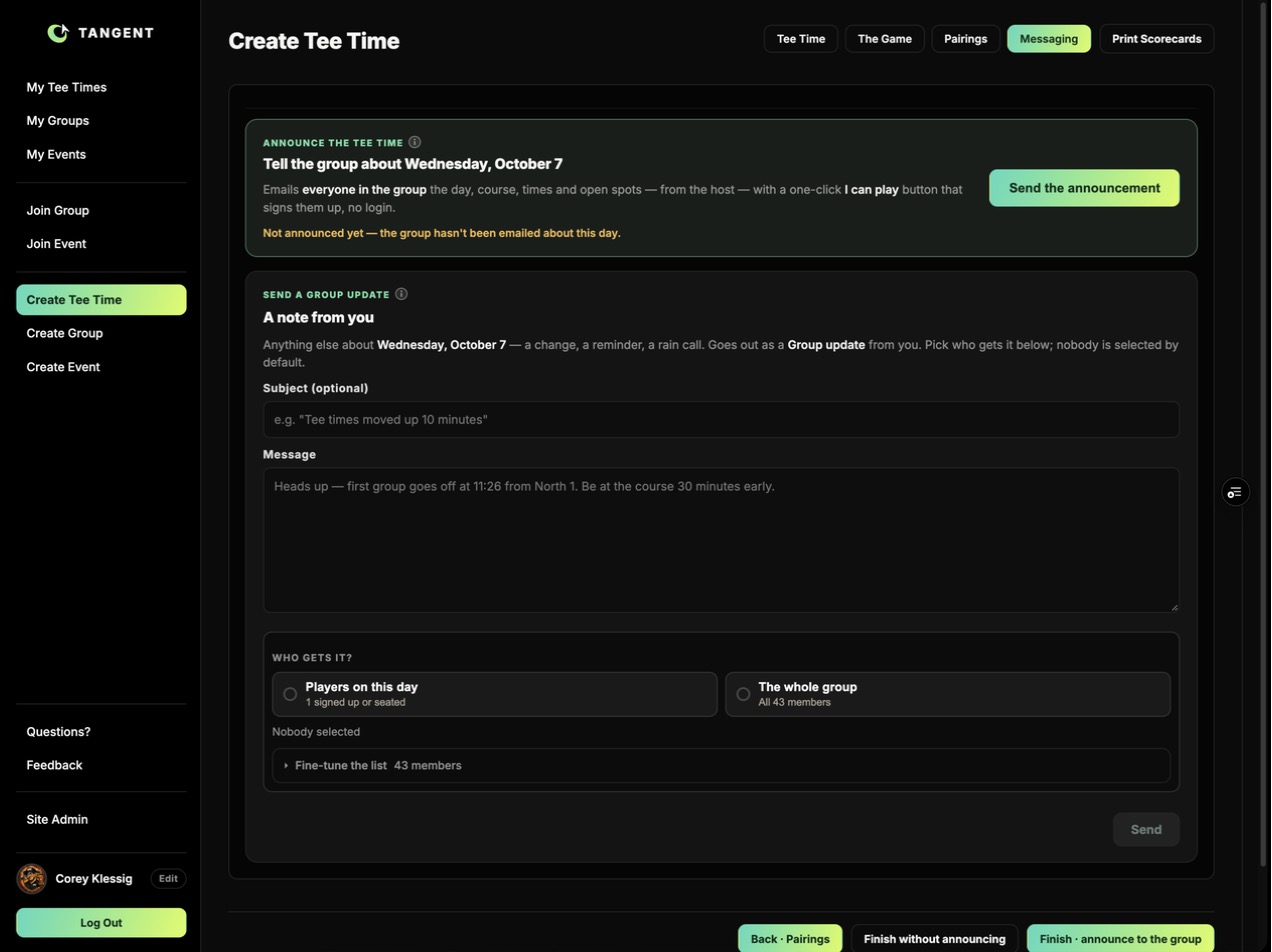
Messaging is where the host sends email to the group about this day. Nothing on this page goes out on its own; every send is a button you press. There are two cards, and the night-before reminder runs by itself:
Announce the tee time. This is the one that tells the group the day exists. It emails everyone in the group the day, course, times and open spots, from the host, with a one-click I can play button that signs them up straight from the email, no login. Until you press Send the announcement the card says Not announced yet and the day card on My Tee Times wears the same badge. Send it once the tee times are right; if you ticked “Announce it to the group now” when you created the day, this has already gone and the card says when.
The night-before reminder isn’t on this page because it needs no button: at 7:00 PM the evening before (or whatever time the group set), everyone on the sheet gets their tee time, their group, the course, the game and the weather. The waitlist is left out. A group can turn it off, change the hour, or make it by-hand only in Group Settings.
Send a group update. Anything else: tee times moved up, a frost delay, a rain call, “be there 30 minutes early”. Type a subject and a message, then choose who gets it: Players on this day (everyone signed up or seated) or The whole group; Fine-tune the list lets you pick people by hand. Nobody is selected until you choose, so you can’t send to everyone by accident. It goes out as a Group update from you.
Every email about the day carries the weather forecast for the course, and the reminder and the announcement both say who the host is so players know who to text.
In Create a Tee Time this is the last page: Finish, announce to the group sends the announcement and finishes, Finish without announcing leaves the day unannounced (the Messaging pill on the day card wears an amber dot until you announce). Press Manage on the day again to close its Manage view.
Group settings: how your group runs
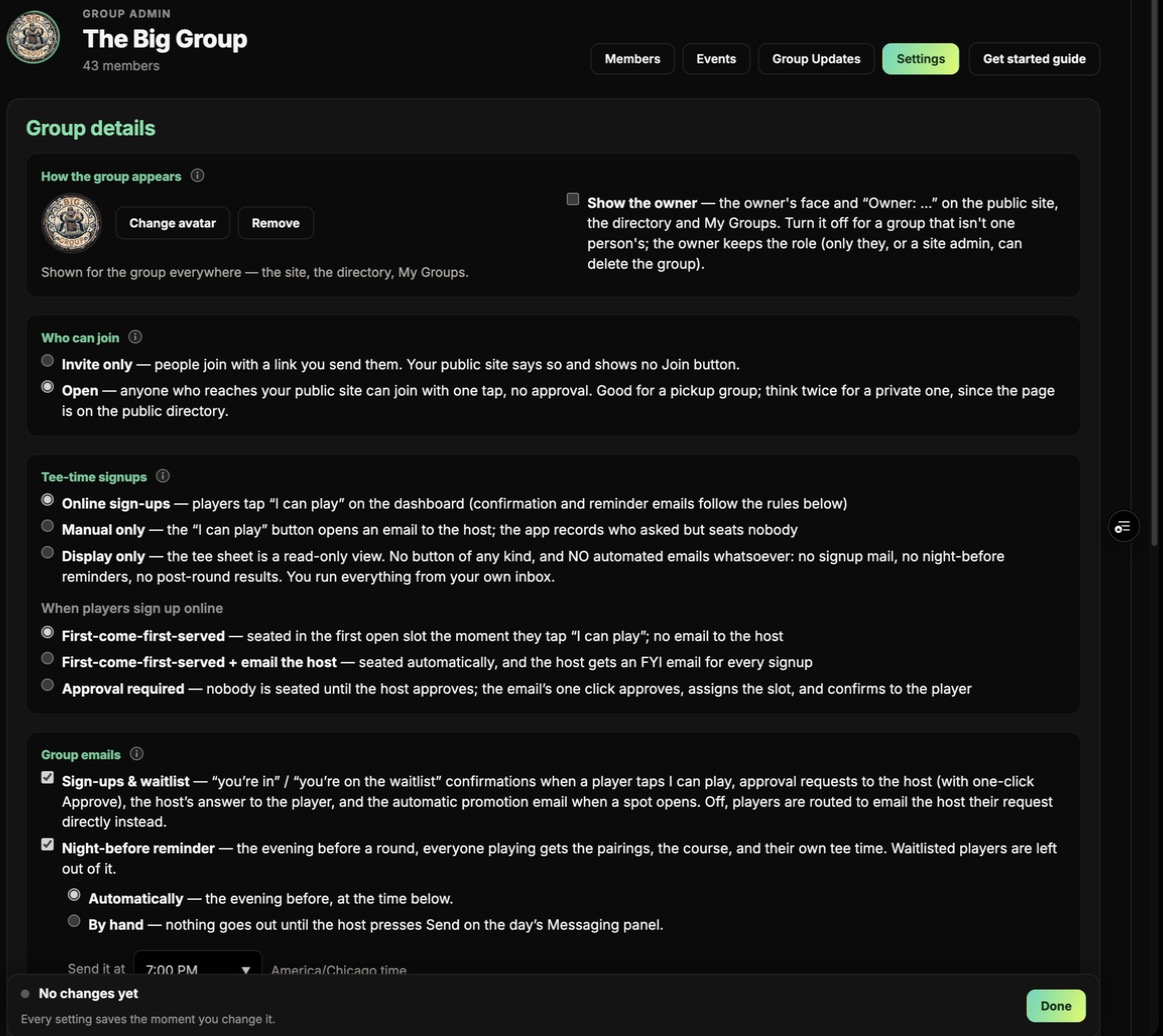
Everything above is a day. The group decides the rules every day follows: who can join, what “I can play” does, and which emails go out. Open My Groups, press Manage on your group, then Settings. (Group admins only; the owner and admins are set on the Members tab.) Every setting saves the moment you change it.
A word on roles. The owner and group admins run the group: its settings, members and invites. The host runs one day: whoever creates the tee times is its host, and the owner or an admin can hand a day to a different host from the day’s Manage panel. Everywhere below that says “the host” means the host of that day, not necessarily the owner.
How the group appears. The group’s avatar, shown beside its name everywhere: My Groups, the day cards, the public page and the emails. Without one, the owner’s photo stands in. Show the owner puts the owner’s face and “Owner: …” on the public page and the directory; turn it off for a group that isn’t one person’s.
Who can join.
- Approval required: people join through a link you send them (Members tab, Invite), or press Request to Join on the public page or the directory. Nobody is in until the owner or an admin approves them; requests wait on the Members tab with Approve and Decline.
- Open: anyone who reaches the public page can join with one tap, no approval. Fine for a pickup group; think twice for a private one, since the page is listed in the directory.
Tee-time signups. This is the big one: what the I can play button does.
- Online sign-ups: players press I can play and the app handles it (the sub-options below say how).
- Manual only: the button opens an email to the host; the app records who asked but seats nobody. For a host who keeps the sheet by hand.
When players sign up online (with Online sign-ups):
- First-come-first-served: seated in the first open spot the moment they press I can play; the host gets no email. The usual choice.
- First-come-first-served + email the host: the same, but the host gets an FYI email for every sign-up.
- Approval required: nobody is seated until the host approves. Each request emails the host with a one-click Approve that seats them and confirms to the player. The player’s card says Request sent until then.
Whichever you pick, the day is full when every spot is taken; after that I can play becomes Waitlist me, and when someone drops out the first on the waitlist is moved in automatically and emailed.
Group emails. Each kind of email has its own switch. Off means nobody gets that kind, and the page says what falls to the host instead. (The tee-time announcement has no switch: it only ever goes when the host presses Announce.)
- Sign-ups & waitlist: the “you’re in” / “you’re on the waitlist” confirmations, approval requests to the host, the host’s answer to the player, and the automatic promotion email when a spot opens. Off, players are routed to email the host their request directly.
- Night-before reminder: the evening before, everyone playing gets the pairings, the course and their own tee time (the waitlist is left out). Automatically at the time you set (7:00 PM by default), or By hand, where nothing goes out until the host presses Send on the day’s Messaging panel.
- Sunday digest: one email Sunday evening with the coming week’s days: times, course, seats open, and whether they’re in. A member in several groups gets one email covering all of them.
- Results: payouts, skins, CTP winners and the scorecards, sent by the host from the 1st Tee page when the round is scored.
Below the switches, See every email this group can send opens a map of every email the app can send and who receives it, so you can see exactly what your members will get.
Public site. On gives the group a public page at groups.tangent.golf/g/<name> (the next two months of tee times, who is in them, events and the roster) that anyone with the link can read; you choose whether players’ names and faces show. Off keeps the group private. The address is set once; the old one forwards if it changes.
Further down the page: the Members list (make someone an admin, remove a member), Change owner, and Delete group.
Managing a day after it's created
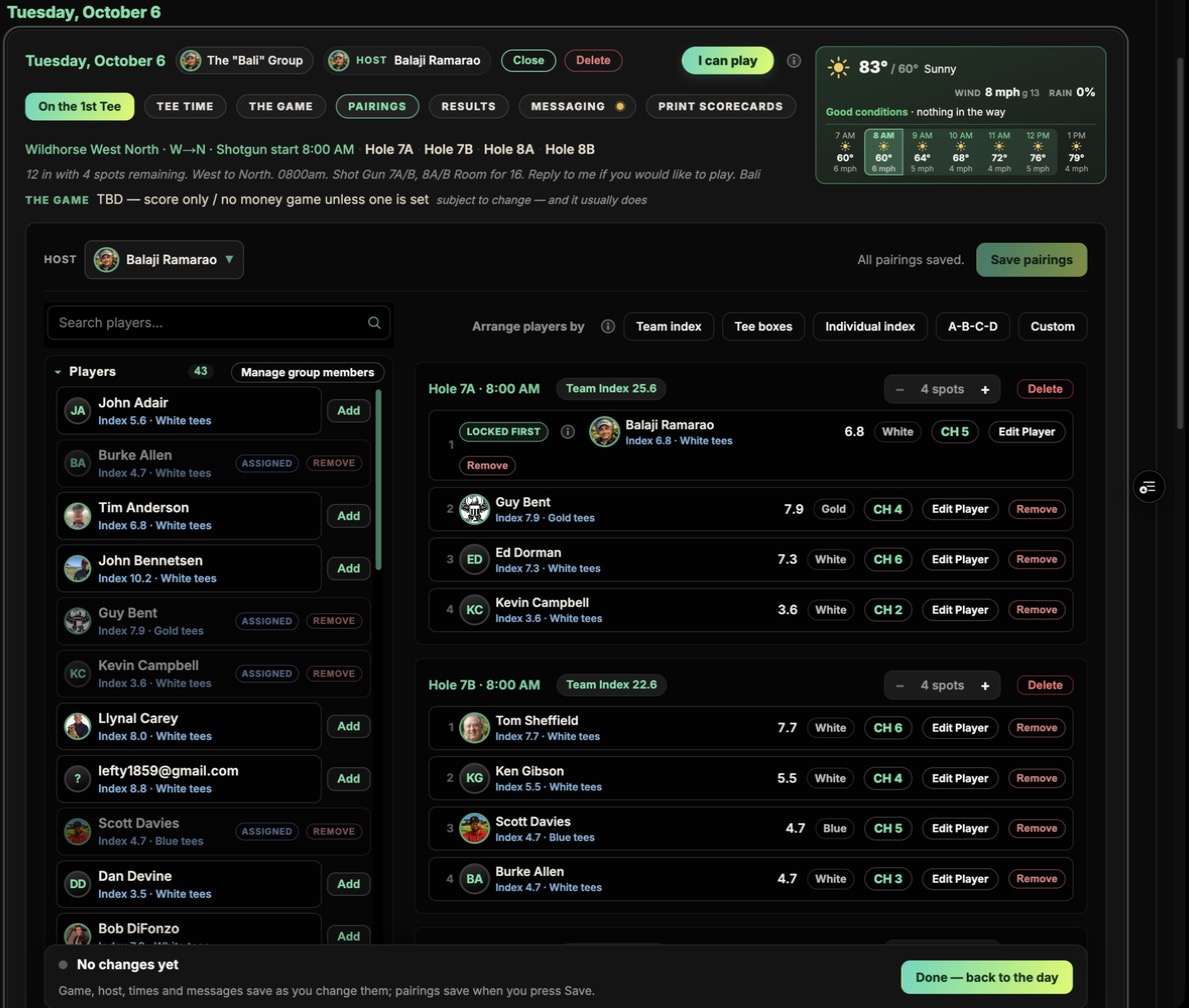
Once a day exists you come back to it from My Tee Times: open the day and press Manage on its date line (hosts and site admins see it). The card opens into the edit view, and the row under the date becomes the host’s toolbar:
- On the 1st Tee: the phone page for game day (see Scoring the round).
- Tee Time: change the date, course, times, starting holes or spots.
- The Game: set or change the game, the money and the side games (see The Game).
- Pairings: the tee sheet, with Edit Player and Arrange players by (see Pairings). Save pairings sits on the host line. Members already on the day show as Assigned in the Players list, with a Remove beside them.
- Results: every score that has come in, however it was entered (the Tangent iPhone app, a player’s own page, or the group’s 1st Tee page), the live board, Scan cards to read paper scorecards with the camera, and the payouts.
- Messaging: announce the day, or send a group update (see Messaging). An amber dot on the pill means the day hasn’t been announced yet.
- Print Scorecards: a pocket scorecard per tee time, with the payout sheet if you want it.
The Host picker on the first line hands the day to someone else; they get an email saying so. Delete (beside Close on the date line) removes the whole day: you type DELETE to confirm, and you can choose to email the players that it’s cancelled.
The Players list on the left is the whole group. When the day is full, each name has Waitlist instead of Add, and a Waitlist box under the sheet shows who’s waiting; drag a seated player into it to bench them. Manage group members opens the group’s Members page in a new tab. The Results toolbar (Print sheet, Scan cards, Add player) sits on the host line too.
Changes wait in the banner at the top: Save Changes keeps them, Cancel puts the saved version back. Press Manage on the day again to close the edit view.
Print scorecards and the payout sheet
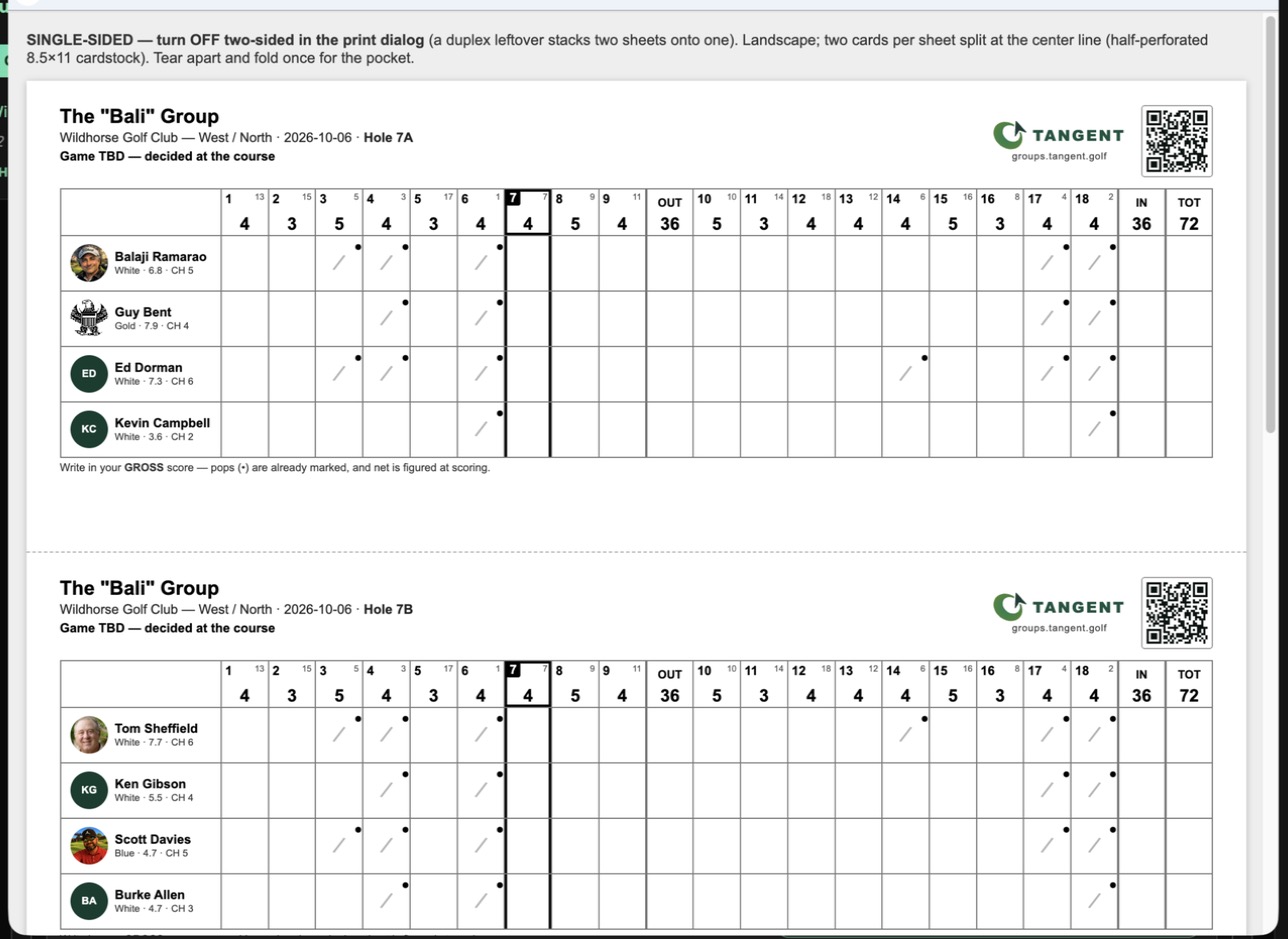
Once the game is set and the players are confirmed, press Print Scorecards on the day’s toolbar. You get one scorecard per tee time, each with the group’s players, the course and the starting hole, ready to hand out on the 1st tee.
The cards do the handicap work for you:
- Course handicaps. Each player’s line carries their tee, index and course handicap for the tees they’re playing (White · 7.3 · CH 6), figured from the course’s rating and slope. No one has to look it up.
- Pops. The strokes a player gets are already marked (the dot in the corner of the hole) on the holes where they get them, by stroke index, so the card shows exactly where each player gets a shot. The starting hole is boxed. Players write their gross score; net is figured when the round is scored.
- Quotas. For a quota game the card carries each player’s points target, so everyone knows the number they’re chasing.
- A QR code on each card opens that day’s On the 1st Tee page, so a player with the card in hand can scan it and start scoring on their phone straight away.
The dialog asks how many cards per sheet (two to a page, or one folded card) and has a Payout sheet checkbox, ticked by default. With it you also get a sheet for the end of the round: the pot, how it splits across the game, skins and proxies, and the places to pay, so the host can settle up at the table without working it out by hand. It prints in portrait on its own page.
The print opens in your browser’s print dialog. Print single-sided (turn off two-sided), landscape: two cards to a sheet, split at the centre line and folded once for the pocket. Or save it as a PDF and text it to the group.
Scoring the round: four ways in
The player’s scoring guideScores can come in four ways, and they all land on the same sheet, the same live board and the same results.
1. The Tangent app. A player with the free Tangent iPhone app scores there as they play, and the app keeps their score and their stats. Their round shows up on the day’s board on its own, hole by hole, with no typing by anyone; the row says Tangent · thru 12 while they’re out.
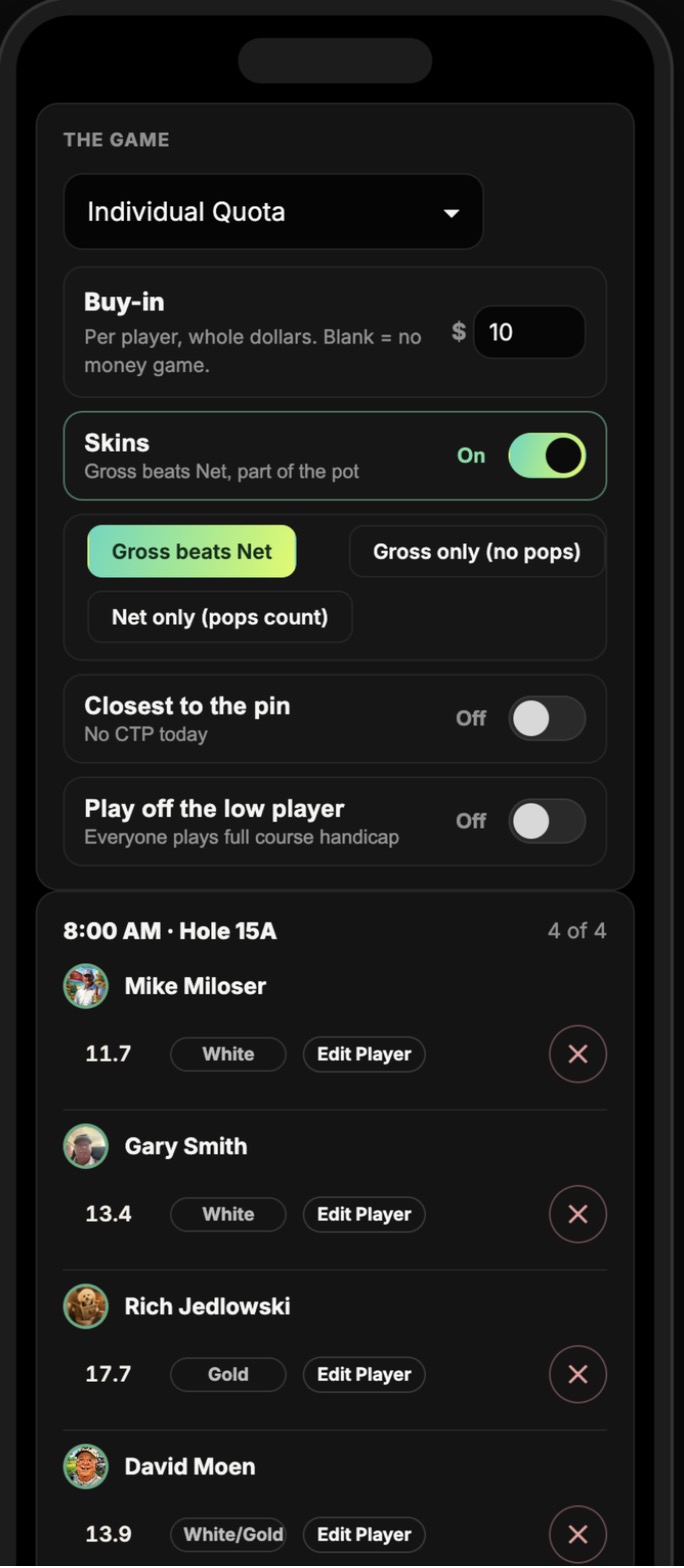
2. On the 1st Tee, on a phone. Every player gets to the day’s phone page from the On the 1st Tee button on My Tee Times, or from the link in the email they got for the day. There they check their group, confirm their index and tee box for the round, and score: their own card, or the whole group’s if they’re keeping the card for the foursome. Scores post to the live board as they go.
3. Scan the paper cards. When the group plays off the printed scorecards, the host presses Scan cards on Results, photographs each card (flat and well lit, one photo per card), and the AI reads every player’s holes. Nothing is saved until the host reviews what it read and presses Apply.
4. Type them in. The host (or any player, for their own row) types the holes straight into the sheet on Results.
However the scores arrive, the host sees them all on Results, with net figured from the pops on the card, the skins and proxies worked out, and the payouts under the standings. A player who walked off is marked Withdraw player: their card stops counting, and the host chooses whether their entry stays in the pot (they paid and withdrew), leaves it (a no-show), or whether they’re taken off the day altogether.
What a player sees: signing up
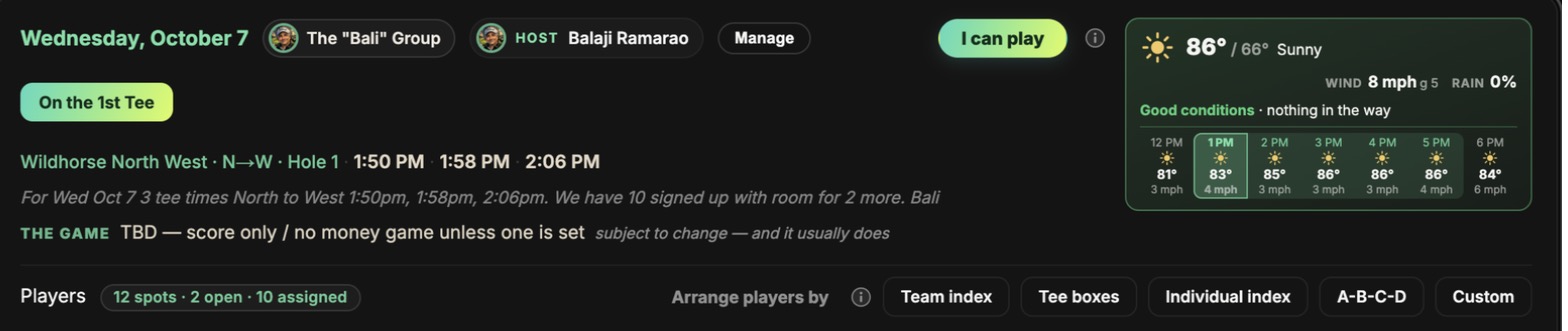
A player opens My Tee Times, taps a day, and sees the card above: the group, the host, the course and times, the weather at the course, the game, and who’s in. (A plain member doesn’t see Manage, Edit Player or Arrange players by; those are the host’s.)
The one button that matters is on the date line, and it changes with the player’s situation. The (i) beside it says what it will do.
- I can play signs them up in one press. They get a confirmation email, their name goes on the sheet, and the host seats them in a tee time (or they’re seated in the next open spot straight away, depending on the group’s settings). In a group with Approval required, the button sends the host a request instead; the card says Request sent until the host approves, then they get the “you’re in” email.
- Waitlist me appears when the day is full. It puts them on the waitlist. If a player drops out, the first person waiting is moved into the open spot automatically and emailed; nobody has to watch the page.
- I can’t play is what the button becomes once they’re in (or on the waitlist). Pressing it opens their spot at once, emails them a receipt, tells the host, and moves the waitlist up. Changed their mind? Press I can play again.
Players also get in from the announcement email: its I can play button signs them up straight from the email, no login.
The day they’re playing is marked You’re playing on the week strip, and once the host has seated them the card says which tee time they’re in.
The leaderboard: the day as it's played
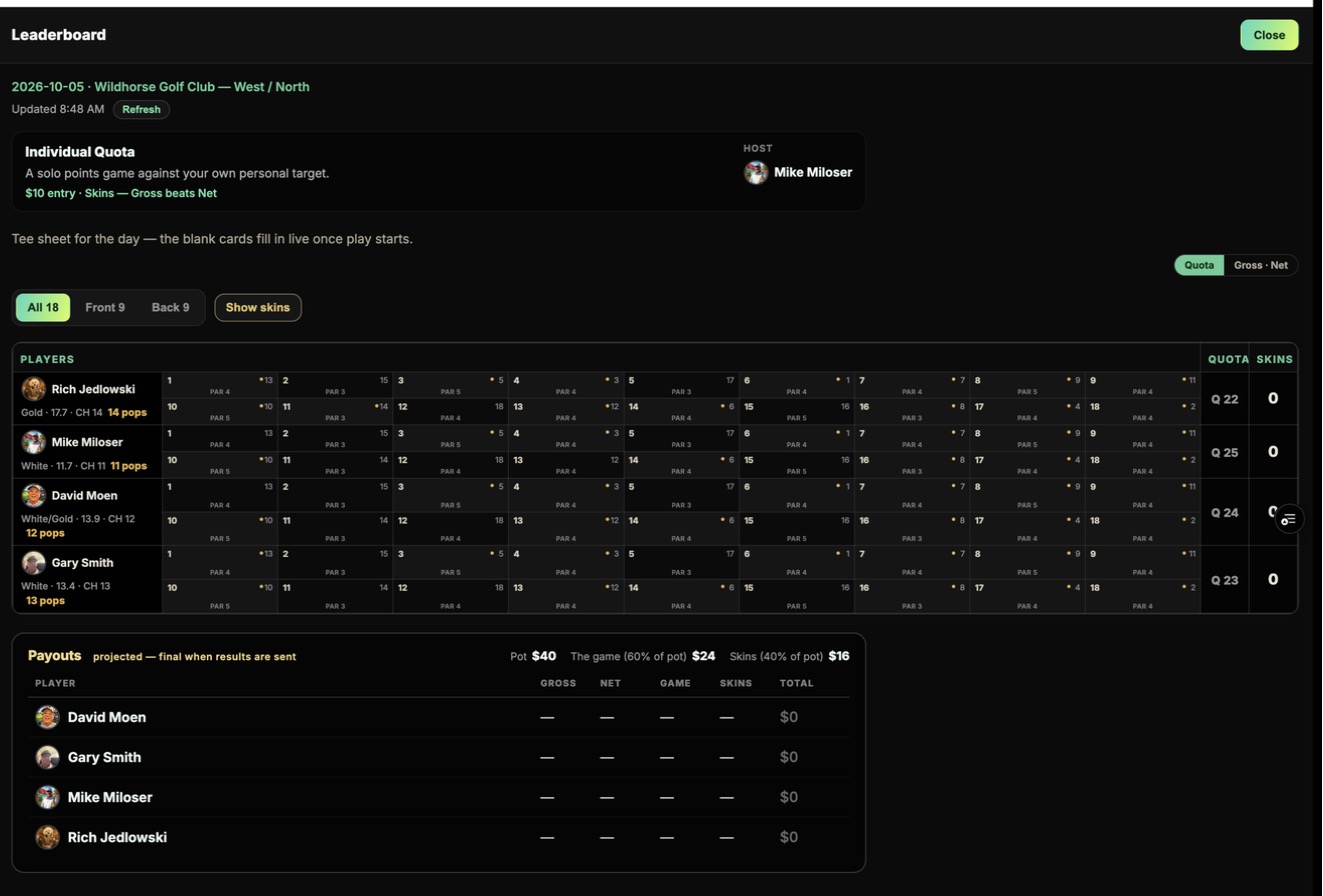
Press Leaderboard at the top of the 1st Tee page (or open the day on the group’s public site) and you get the day as it’s being played: the game and the host, every player’s card hole by hole with their pops marked, the running quota or gross/net totals, skins, and the projected payouts at the bottom: the pot, the split, and each player’s game, skins and total. It updates as scores come in from phones and the Tangent app; Refresh pulls the latest. The payouts stay projected until the host sends the results, then they’re final.
Anyone on the day can see it, and the public version needs no sign-in, so the guys in the clubhouse can follow the last group in.
Results: the host's view of the scores
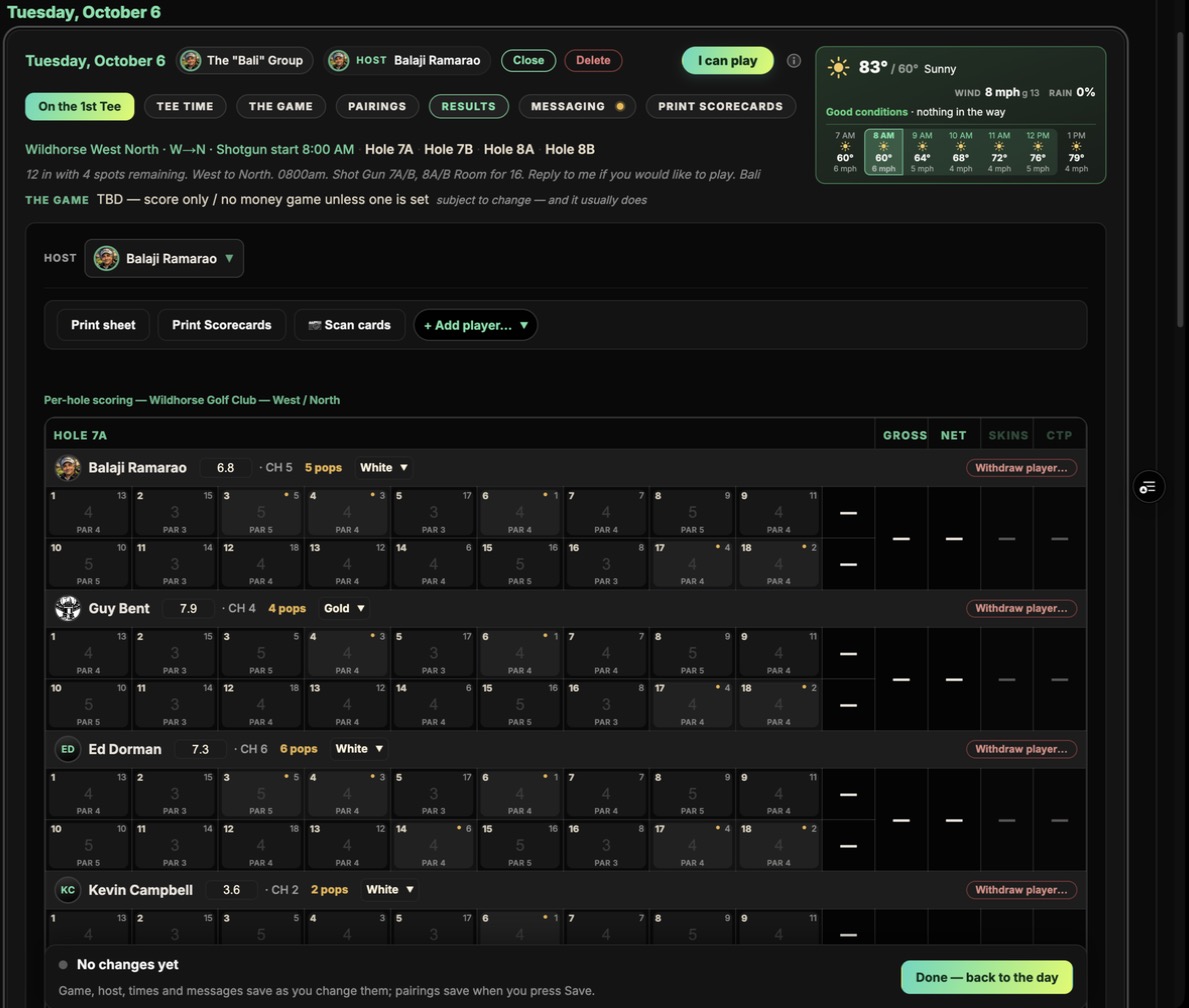
Results (Manage, then the Results pill) is where the host sees the day as it’s scored, whichever way the scores came in (see Scoring the round).
- Per-hole scoring. One card per tee time, one row per player, with their index, course handicap and pops for the day, and the tee they’re playing. The hole boxes show par and the stroke index; a dot marks a hole where the player gets a pop. Scores typed here save as you go; scores from the Tangent app or the 1st Tee page appear on their own.
- Gross, Net, Skins, CTP total up on the right of each row as the holes fill in.
- Live standings sit above the sheets once a game is set: the leaderboard for the format, the skins as they stand, and the money.
- Payouts. When the round is in, the payouts section shows where the pot lands: places, skins and proxies, with each player’s winnings. The same figures are on the printed payout sheet.
- Toolbar (on the host line): Print sheet prints the whole roster sheet; Scan cards reads paper scorecards from photos; Add player adds a late arrival to the day.
- Withdraw player… on a row opens three choices: Withdrew during the round (scores stop counting, entry stays in the pot), No-show (scores stop and they leave the pot), Remove from the day (they were never playing; the seat opens).
When everything’s in, press Send results to the players in the payouts section: every player on the day gets the standings, the payouts, their own line, and the scorecard photos if any were scanned, with a link to the day’s page where the full leaderboard and every card can be seen.
And if you want more: the Tangent app
Nothing in this guide needs it. But the free Tangent iPhone app is where scoring gets easiest, and a subscription adds the game-improvement side: a real handicap index calculated from the rounds you actually play (it follows you into every group and event here, so nobody types it in), GPS and a Smart Caddie on every hole, your scores and stats in one place, and strokes-gained coaching that shows where the shots are going. Tangent Pro golfers improve their index by 30% on average in their first year.
Yearly works out to under $7 a month for Basic and under $10 a month for Pro, with a 7-day free trial on annual plans. Cancel any time in the App Store.
- FreePlay with the essentials$0forever Download for iOSNo card required
- GPS + scoring on every round
- Round history & basic stats
- Handicap tracking
- Web dashboard, your latest round
- BasicEverything on the course$79.99/yearor $14.99/monthDownload for iOSFree 7-day trial on annual
- Everything in Free
- Automatic watch shot tracking
- Smart Caddie with game-theory targets
- GPS shot maps with club & lie detail
- Live yardages, wind & elevation
- Most popularProPractice connected to performance$119.99/yearor $24.99/monthDownload for iOSFree 7-day trial on annual
- Everything in Basic
- Strokes-gained Smart Coach analytics
- Personalized practice plans
- Measured drill results & trends
- The full web analytics suite